
If you want your photos to peer out through different shapes, but haven't had any luck with freehand selecting the shape, here's a technique which might prove useful. It allows a bit more variety than the sqare and rectangular selection methods.
|
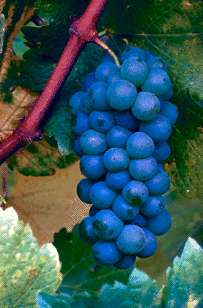
First, start with a picture. I got this picture as a piece of clip art in Adobe Photo Deluxe. Tip: Always save a copy of your unaltered picture somewhere. You might not end up liking the changes you make, or may decide that some other changes would suit you better. |
|
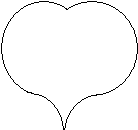
Next, choose and make a shape. I adore Concord grapes, so I chose a heart shape. Sometimes clip art has some good shapes, and I've even found some among fonts. The shape you choose can be any shape you can make or find, but should ideally be smaller than your picture. |

|
For this example, I just want a simple cut-out, so I've made all of the inside space including my outline the same color. |

|
Pick a color to be your transparent color. I usually use acid green as my transparent color because it is so easy to spot the edges against any other colors I use. Fill the inside of your shape with your transparent color, "select" your shape, and copy it. |
|
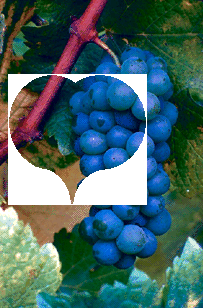
Go to your photo/picture. Make your transparent color the background color, and make sure that you're set up to allow transparency. Paste your shape, choosing your composition before you make it final. |

|
Trim your picture. |

|
Here's an example where I left the outline a different color. When done in a subtle variation on the shade of the surrounding color, unlike that seen here, it can appear to add depth. |

|
This same technique is often used with fonts. Individual letters can also be done in different themed pictures for a "fifties postcard" look (especially if one is using "fifties postcard" type graphics). |

diy | diy 2 | diy 3 | fall | flora | granny | home | light | lobstah | misc. | more | punk | spring | stained glass | summer | summer linnens | tile | vorkosigan | winter